
How to track paid and unpaid bills with Monthly Bills
By App Bards ·
Some bills are paid automatically. Others need a transfer. Utility amounts can change, and subscriptions renew on different days. By the middle of the month, it can be hard to remember which payments you have already checked.
Monthly Bills gives you a monthly list where you can mark bills paid and see what is still unpaid. You enter the information yourself, without connecting a bank account.
Here is how to use it to keep track of your bills.
1. Add the bills you expect each month
Start with your regular payments: rent, electricity, water, internet, phone service, insurance and subscriptions.
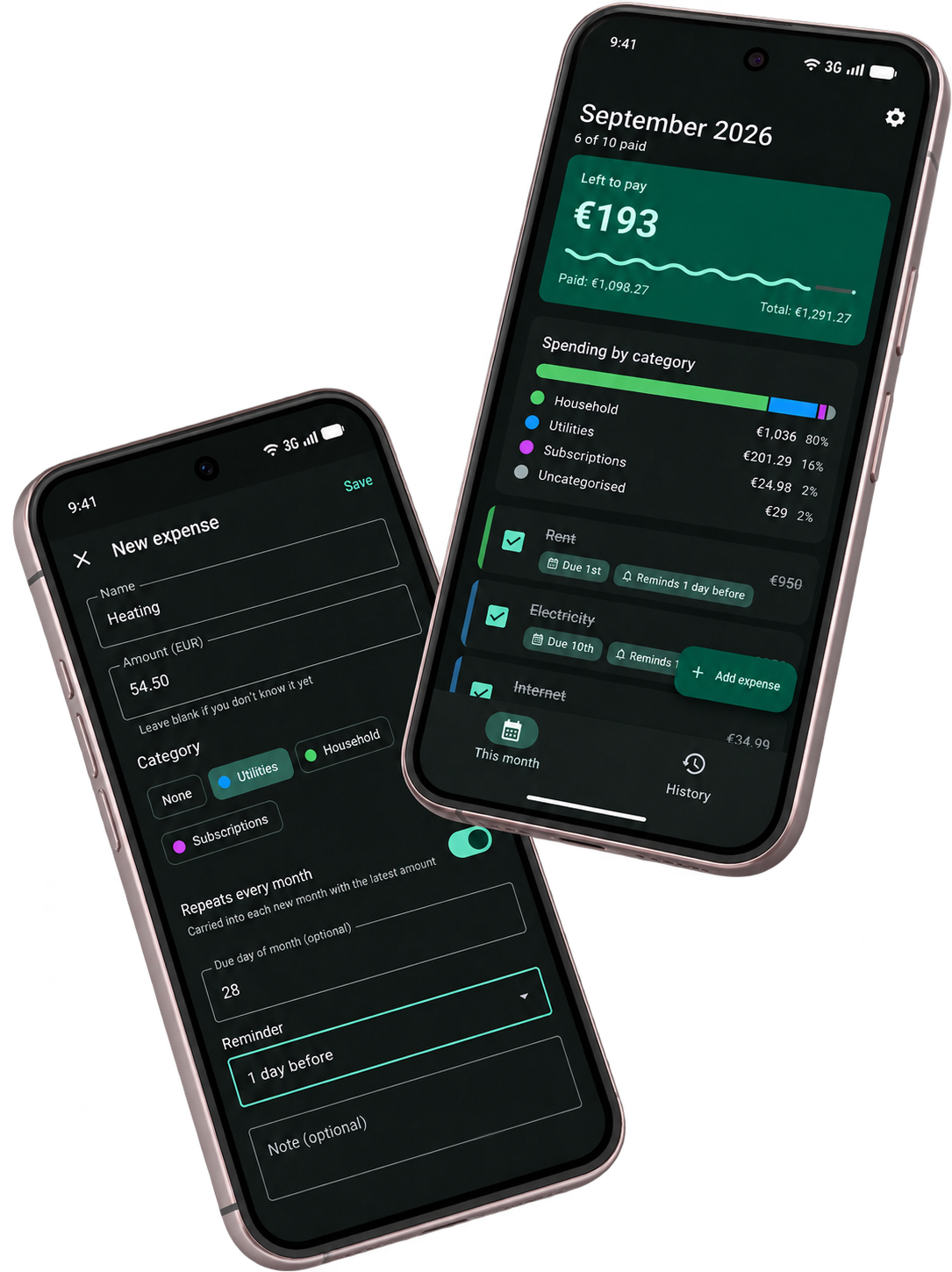
Give each bill a name you will recognise. Enter the amount if you know it, and add an optional due day if you want to keep track of when it needs paying. Categories and notes can help you organise the list.
For example, you could put internet and phone payments in a “Home” category and add a note to identify bills collected automatically.
You can build the list as bills arrive. You do not have to know every amount before you start.
2. Set regular bills to repeat
Set recurring expenses to repeat each month. Monthly Bills carries them over automatically, even if you have not opened the app.
The latest known amount is carried over too, ready for you to edit. This saves you from rebuilding the same list, but changing utility costs and price increases still need reviewing.
Add one-off expenses alongside your regular bills when needed. A single repair, for example, can belong on this month's list without becoming a recurring monthly expense.
3. Mark a bill paid after checking the payment
Once you have paid a bill and checked that the payment was successful, mark it paid in Monthly Bills. The entry is crossed off, giving you a visible record of what you have dealt with.
For automatic payments, check that the collection went through before marking the bill paid. You can use a note to record anything you want to remember about that payment.
Monthly Bills records the payment status you enter. You make and confirm payments through your usual bank or provider.
4. Check what is still left to pay
As you check off bills, use the remaining total and paid-bill count to review your progress through the month.
You can move completed bills to the bottom so unpaid entries stay easy to find. This is useful when you want to open the app, check the outstanding list and decide which payment needs your attention next.
Review bills with blank amounts as well: they remain on your list, but their costs are excluded from the total until you enter an amount.
5. Add changing amounts when the bill arrives
An electricity bill may belong on your list before you know its final cost. Leave the amount blank, then enter it when the bill arrives.
A blank amount lets you keep track of the bill without entering an invented cost. Once you add the amount, it is included in the totals.
For recurring bills, check the amount carried over from the previous month and update it whenever needed.
6. Set reminders for payments you need to make
Add an optional due day and choose a reminder on the due date, one day before or one week before.
Pick a lead time that gives you enough time to act, and check that notifications are enabled on your phone. Review the reminder when a bill's due day changes.
Reminders stop once you mark the bill paid.
7. Review your list at the start of the month
Your recurring entries will be ready, but a short review helps keep the list accurate.
Check for changed prices, cancelled subscriptions and new regular payments. Review any changing amounts and add one-off expenses you already know about.
You can also review previous months to check your payment history. Keep the month in mind when reviewing an older unpaid entry so you can distinguish it from the current bill.
Start with your regular bills
You can begin with the handful of bills you pay every month. Add them to Monthly Bills, set recurring entries where appropriate, and update their status as you confirm payments.
See Monthly Bills and its features.
For a broader guide to setting up a manual bill-tracking routine, read how to organise monthly bills without connecting your bank account.
Monthly Bills is made by App Bards. This guide describes our app's features.